5 Hidden Features of the Cynosa Chroma You Must Know About
Introduction
The Razer Cynosa Chroma often appears on shopping lists as an affordable, entry-level gaming keyboard with flashy RGB lighting. Yet beyond the headline claims—vibrant colors and a soft membrane feel—there are several lesser-known capabilities that make the Cynosa Chroma useful for a wider range of buyers than one might expect. This article explores five "hidden" features, explains how they are accessed, and shows real-world use cases that matter to buyers: streamers, casual and competitive gamers, office workers who want flair without a loud keyboard, and buyers weighing value versus feel.
Why these hidden features matter
Buyers typically care about durability, software support, customization, and whether a keyboard will integrate into existing workflows or gaming setups. Hidden features—software-driven functions, device integrations, and small hardware conveniences—can dramatically change the day-to-day value a keyboard provides. For the Cynosa Chroma, these features can turn a budget membrane keyboard into a flexible tool for productivity, streaming, and immersive gaming.
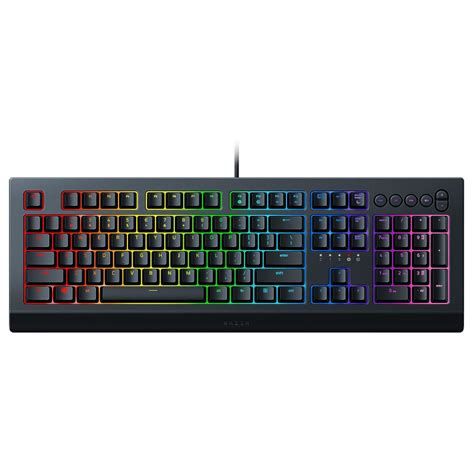
The five hidden features explained
1. Deep Chroma lighting customization via Razer Synapse
At first glance the Cynosa Chroma's lighting is an aesthetic perk. The hidden advantage is the depth of customization afforded by the Razer Synapse and Chroma Studio ecosystem. Using Synapse on a Windows PC, users can:
- Customize individual-key colors and create layered effects (static, wave, ripple, reactive).
- Use Chroma Studio to sequence complex animations and synchronize lighting across other Chroma-enabled devices.
- Import and export lighting profiles or browse community presets for game-specific setups.
Real-world use case: A streamer can match keyboard colors to on-screen overlays, trigger reactive lighting on alerts, or use distinct color schemes for different games to visually confirm which active profile is loaded without opening software.
2. Software macros and key remapping (and how they extend productivity)
Although the Cynosa Chroma does not have the hardware macro layers of high-end mechanical keyboards, Synapse provides powerful software macros and remapping. Users can assign sequences, text snippets, or multimedia controls to any key and bind profile switching to desktop applications. Key features include:
- Macro recording and editing (record keystrokes, delays, and playback options).
- Remapping keys to function as media shortcuts, hotkeys for streaming software, or application-specific commands.
- Profile auto-switching when specific programs launch so when an editing application opens the keyboard automatically uses the editor profile.
Real-world use case: A video editor can remap F-keys to common timeline operations and switch automatically to that layout when the editing app becomes active, saving time and keeping the workflow on a simple, quiet membrane keyboard.
3. Game Mode and Windows-key lock for uninterrupted play
Game Mode is an understated but valuable feature that prevents accidental alt-tabbing or menu pops caused by the Windows key or other system commands. For the Cynosa Chroma, Game Mode can be toggled through Synapse or a dedicated function combination (depending on firmware and driver version). Benefits include:
- Reducing the chance of accidental interruptions during competitive matches.
- Allowing users to disable other system shortcuts that conflict with in-game binds.
Real-world use case: Competitive players who use layered keybinds for movement or abilities can lock out the Windows key to avoid losing matches to accidental presses. Casual players who stream can also maintain consistent inputs while managing overlays and chat in a second monitor.
4. Spill-resistant design and low-profile maintenance
Many keyboards in this price bracket emphasize durability. The Cynosa Chroma includes a spill-resistant membrane top layer. This is not a license for reckless behavior, but it reduces damage from common accidents like a small cup tipping or a drink splash. Add to that the low-maintenance nature of membrane keys—no dusty mechanical switches to clean—and buyers get a practical keyboard for multi-use desks.
Looking for the best Electronics deals on Amazon?
See Deals →Real-world use case: A home office that doubles as a gaming station benefits from a keyboard that can survive coffee spills better than cheap non-gaming models. Parents who work from home and often have beverages nearby will appreciate the reduced risk.
5. Chroma integrations and third-party app support
Beyond simple color picking, Chroma-enabled devices can integrate with games and apps that support the Chroma SDK or Chroma Connect. This means the Cynosa Chroma can react to in-game events (health low, cooldown ready), sync with music visualizers, or display alerts from streaming tools when configured through compatible software.
Practical examples include:
- Lighting that pulses when the stream receives a new follower or donation (through supported streaming plugins).
- Reactive effects that mirror in-game events, enhancing immersion for single-player experiences.
- Third-party apps that map system notifications to color flashes for subtle, unobtrusive alerts while working.
Real-world use case: A content creator can use lighting as a second-layer feedback system—glancing at the keyboard is enough to tell if chat activity spiked or if a recording is live, without switching windows.
Detailed product review and analysis
The Cynosa Chroma occupies a specific niche: it’s aimed at buyers who want the RGB experience and gaming features without the price or noise of mechanical switches. Key considerations during analysis include build quality, typing feel, software experience, and ecosystem value.
Build quality and typing feel
The keyboard uses membrane switches with soft, cushioned keycaps. For typists who prefer tactile feedback, this will feel different from mechanical alternatives—key presses are quieter and have less tactile "click." That can be a feature or a drawback depending on the buyer. The overall chassis is plastic but adequately reinforced for everyday use; it isn’t heavy, which helps portability but signals it’s not an industrial-grade device.
Software and ecosystem
Razer Synapse is the gateway to the keyboard’s strongest features. On Windows, Synapse unlocks per-key lighting, macros, Chroma Studio, and app integrations. On other platforms the feature set is typically reduced—buyers should check Razer’s current support notes. The Synapse experience is powerful but requires a user willing to install and manage the software. For those who want a plug-and-play keyboard with no drivers, some convenience functions will be unavailable.
Suitability for different users
- Casual gamers: Great option. RGB and software features provide personality without the cost and noise of a mechanical board.
- Competitive gamers: Works well for practice and casual matches, but serious esports players often prefer mechanical switches for consistency and faster actuation.
- Office workers: Quiet keys and spill resistance make the Cynosa Chroma attractive for shared workspaces or home offices where noise reduction is important.
- Streamers/content creators: Chroma integrations and macros make it an entry-level option for adding production polish.
Pros & Cons
- Pros
- Affordably priced with attractive RGB lighting and Chroma support.
- Quiet membrane keys suitable for shared spaces.
- Spill-resistant design reduces accidental damage risk.
- Powerful customization through Razer Synapse and Chroma Studio on supported platforms.
- Software macros and profile switching extend productivity beyond gaming.
- Cons
- Membrane key feel lacks the tactile precision many mechanical switch fans want.
- Full feature set depends on Razer Synapse and is best supported on Windows.
- No onboard hardware macro memory (profiles tied to software/cloud in many cases).
- Chassis construction is lighter than premium keyboards—less heft and premium feel.
Comparison table: Cynosa Chroma vs similar options
| Model | Switch type | RGB | Dedicated media keys | Software | Best for |
|---|---|---|---|---|---|
| Cynosa Chroma | Membrane (quiet) | Per-key RGB via Synapse | Function-based media controls (no dedicated cluster) | Razer Synapse / Chroma Studio | Budget RGB, quiet typing, streaming integration |
| Logitech G213 | Mecha-membrane hybrid | Zone RGB | Dedicated media keys | Logitech G Hub | Budget gamers wanting dedicated media controls |
| Corsair K55 | Membrane | Zone RGB | Dedicated media controls and volume roller | Corsair iCUE | Entry RGB with extra media ergonomics |
| Razer Huntsman Mini | Optical mechanical | Per-key RGB | Function-based media controls | Razer Synapse | Compact mechanical experience and fast actuation |
Buying guide: what to consider before choosing the Cynosa Chroma
1. Key feel and typing preferences
Decide whether quiet membrane keys are suitable. If a tactile or clicky response is essential—especially for fast-paced esports—consider mechanical options. If noise or a soft touch is preferred for shared environments, membrane is advantageous.
Find top-rated Electronics products at great prices.
See Deals →2. Software dependence and platform compatibility
Razer Synapse unlocks the Cynosa Chroma’s best features. Buyers should verify they can and are willing to install Synapse. The most complete experience is on Windows; macOS and Linux users may see limited functionality depending on Razer’s software support at purchase time.
3. Lighting and ecosystem integration
If synchronization with other Chroma devices or in-game lighting is a priority, the Cynosa Chroma is a logical choice within the Razer ecosystem. Those who want RGB purely for static aesthetics can get similar looks from other brands but will lose the extended Chroma interactivity.
4. Physical durability and spill resistance
Consider the environment: if the keyboard will sit near food or beverages, the Cynosa Chroma’s spill resistance is a practical plus. For heavy-duty, daily competitive play where a keyboard is used aggressively, evaluate chassis heft and key longevity expectations.
5. Budget and value
The Cynosa Chroma typically sits in a budget-to-value tier. For buyers seeking entry-level RGB who don’t need mechanical switches, it represents strong value. If budget allows and tactile performance is required, higher-cost mechanical boards may be a better long-term investment.
6. Future-proofing and upgrades
Think about what a user might want in two years. If adding a full Razer setup is planned (mouse, headset, lighting), choosing a Chroma device helps future integrations. Conversely, users committed to a different brand’s ecosystem should consider cross-compatibility trade-offs.
How to unlock the hidden features (quick setup tips)
To get the most from the Cynosa Chroma:
- Install Razer Synapse on Windows and sign in to enable cloud profile storage.
- Open Chroma Studio to design per-key lighting and save multiple profiles for different games or tasks.
- Create macros in Synapse and assign them to keys used frequently in productivity or streaming software.
- Enable Game Mode or map a quick toggle to prevent accidental Windows key presses during play.
- Check the Chroma Connect tab for compatible third-party apps and enable integrations such as streaming overlay plugins or music visualizers.
Conclusion
The Cynosa Chroma is more than a colorful budget keyboard; when paired with Razer Synapse and Chroma integrations, it can serve as a versatile tool for streamers, office users, and casual gamers. Its hidden strengths—deep lighting customization, software macros and remapping, game-focused modes, spill resistance, and ecosystem integrations—make it worth considering for anyone who wants more than basic functionality without stepping up to an expensive mechanical keyboard. Buyers should weigh the membrane feel and software dependence against the advantages of quiet operation, customization potential, and cost. For those who value quiet keys, RGB flexibility, and practical software-driven features, the Cynosa Chroma remains a sensible, feature-rich choice in its price bracket.